[New post] MacBook not charging when plugged in? Real fixes (2022)
abihordun posted: " Is your MacBook battery not charging even after you plug in the USB-C or MagSafe cable? This may be due to a faulty wall outlet, cable, charging adapter, heat, degraded battery, or the Mac's SMC. But worry not. As long as it is not a hardware problem," TECHEVANGELISTSEO - WORDPRESS SEO IPHONE TIPS How Tos
Is your MacBook battery not charging even after you plug in the USB-C or MagSafe cable? This may be due to a faulty wall outlet, cable, charging adapter, heat, degraded battery, or the Mac's SMC.
But worry not. As long as it is not a hardware problem, we will fix the MacBook not charging issue and ensure everything is fine again. Let's get started!
Basic fixes
Ensure MacBook is not excessively hot
Check the wall outlet
Check charger and cable
Make sure the connection is proper
Restart your Mac
Temporarily try a different charger
Update your Mac
Mac battery status says "Not Charging"
Reset SMC
Check MacBook's battery health
Contact Apple Support
1. Basic fixes
I. Ensure MacBook is not excessively hot
If your computer is excessively hot, it may not charge. To fix this, save your work and shut it down. After some minutes, the machine will cool down gradually, and it should start charging again.
II. Check the wall outlet
Make sure the charger is connected correctly with the wall power outlet. If you are using an extension board, consider plugging the charger directly into the wall plug.
If the above actions do not help, try a different wall outlet. Apple says,
"The power adapter automatically shuts off when its built-in voltage protection feature senses line noise from an outlet. Some possible sources of line noise include lights with ballasts, refrigerators, or mini-refrigerators that are on the same electrical circuit as the outlet you're using."
To fix this, ensure you plug the MacBook charger into an outlet on a different circuit or a UPS (Uninterruptible Power Supply).
III. Check charger and cable
If your MacBook is not charging when plugged in, take a few seconds to ensure the charger and cable are ok. Also, ensure the charging brick is not too hot. If it is abnormally hot, unplug it from the wall socket and MacBook and let it cool.
Note: Not all USB-C cables are the same. The USB-C cable that came with your Android phone or you got for a few bucks may not charge your MacBook. Try to use the one that came with your Apple notebook. Or use a reputable one whose product description mentions that it is compatible to charge MacBooks.
Does your MacBook use a MagSafe connector to charge? Is the MacBook charger not working, and there is no light on it? If yes, consider reversing the MagSafe. That is, if earlier the wire was from behind the screen, flip it so that it comes from the front.
IV. Make sure the connection is proper
It is also essential to ensure that the charging cable fits snugly in the MacBook's charging port. Often USB-C cables and ports become loose over time. For example, a few of the old MacBooks in our office have loose, wobbly ports. It takes care to ensure they do not experience even the slightest of tugs. Else, the charging stops.
Thankfully, none of the early MacBooks with MagSafe have this issue. The magnets fit perfectly.
V. Restart your Mac
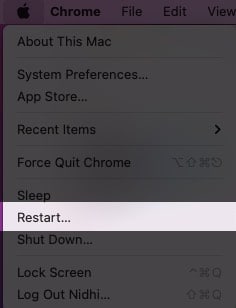
This is another essential solution to fix the Mac plugged-in but not charging issue. Save your ongoing work and click the Apple logo at the top left. Next, click Restart. Once your computer powers on again, it should charge normally.
VI. Temporarily try a different charger
If possible, borrow a MacBook charger from a friend or family member and see if you can charge your computer with that. If yes, that means the problem lies in your charger or the cable. Consider taking it to an Apple Store or authorized service center and get it inspected.
VII. Update your Mac
Another helpful solution to fixing the 'MacBook not charging when plugged in' issue is to update it to the latest version of macOS. Some updates may improve the communication between your MacBook and the charger.
To update, click the Apple logo at the top left → System Preferences → Software Update.
Note: Software updates require time to download and install. Plus, if the battery is significantly low, you must plug it into charging. And since you cannot do that, consider using a different charger. Or, follow the rest of the solutions below, and hopefully, they should fix the issue.
2. Mac battery status says "Not Charging"
When you click the battery icon in the top menu bar, does it say 'Not Charging' even when you have plugged in the MacBook's charger?
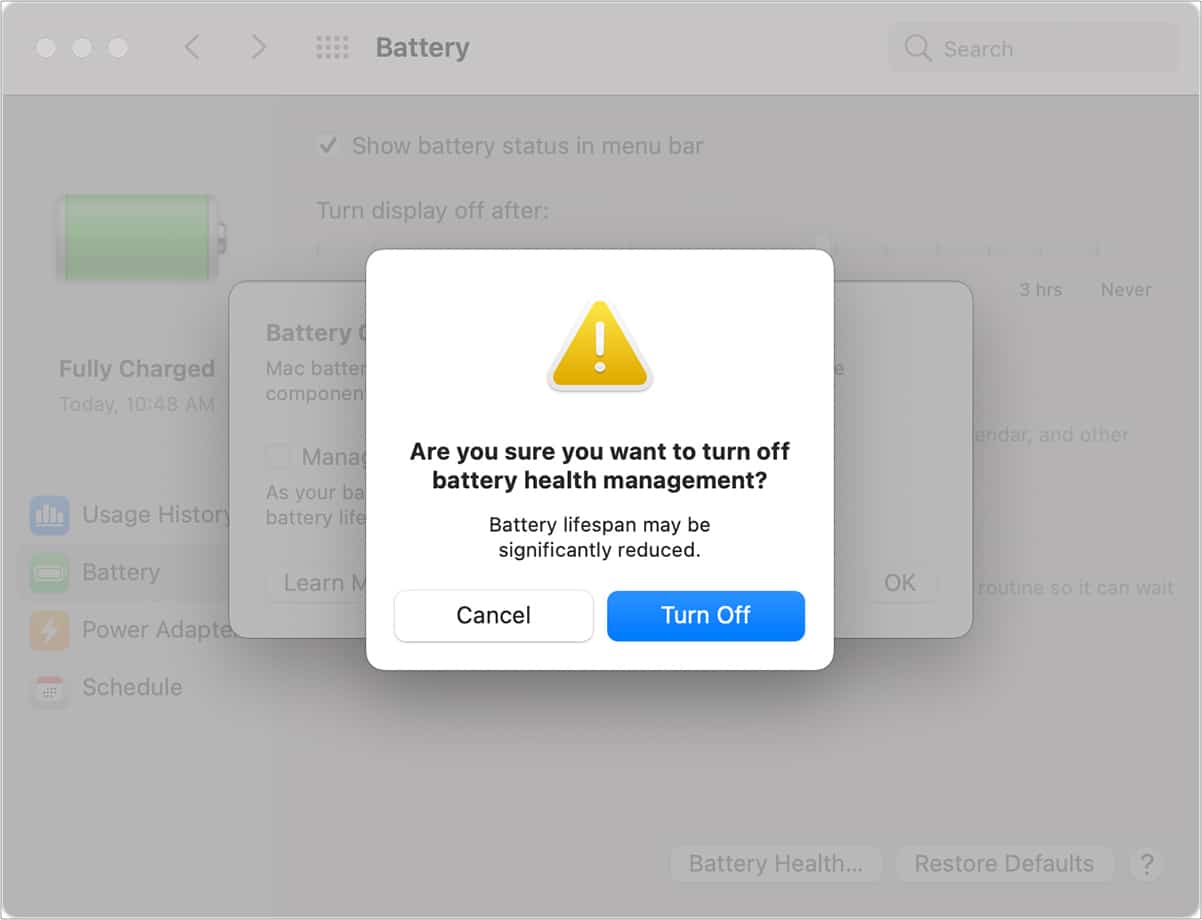
Your Intel-based notebook running macOS 10.15.5 or later may be doing this on purpose to extend the overall battery life. Once the charge goes below 90%, it would start charging again. But if you would like it to resume charging now, follow the steps below to turn off battery health management.
Click the Apple logo and choose System Preferences.
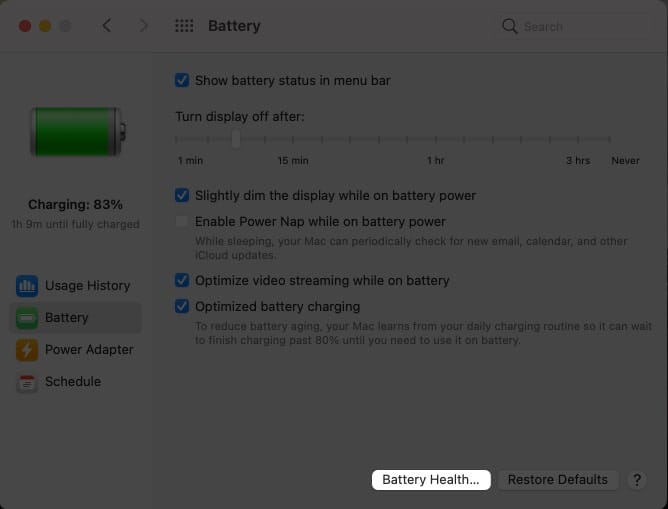
Click Battery → Battery Health.
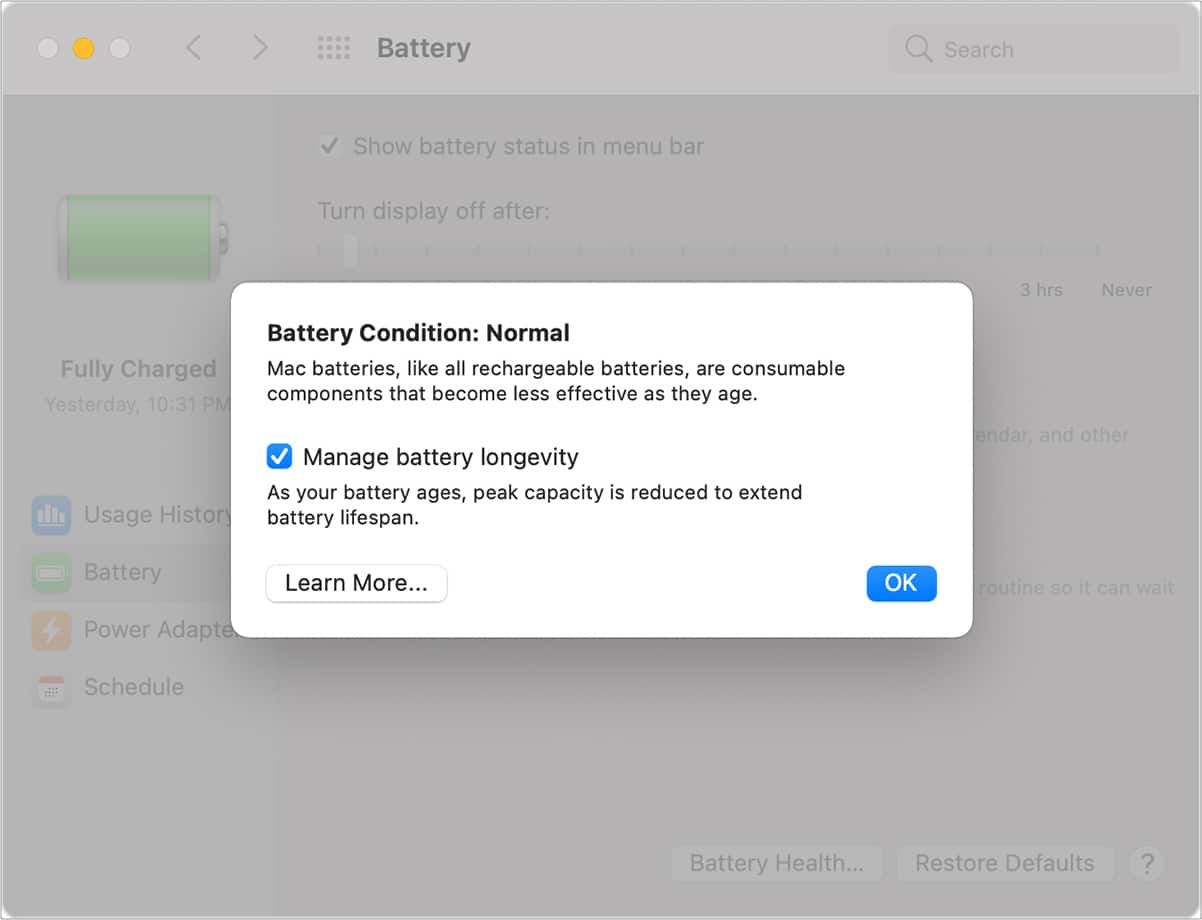
Uncheck Manage battery longevity → Turn Off → Ok.
Note: It is essential to know that turning battery health management off may reduce your MacBook's battery lifespan.
Important:
If you are using a low-power adapter, you may see the Not Charging text. Consider using the power adapter that came with your Mac or use one of equivalent wattage.
In rare situations, when you run several demanding applications like video editors, 3D model creation apps, and such, your MacBook might require more power than currently provided by the adapter. In this case, consider quitting unnecessary apps and services. Restarting your Mac and using a more powerful adapter will also help.
3. Reset SMC
Issues related to charging and a lot more on your Intel-based MacBook can be fixed by resetting the system management controller (SMC). We have a separate guide where you can learn how to reset SMC.
If you are using a newer MacBook with Apple silicon, just restart your Mac.
4. Check MacBook's battery health
The next essential solution is to check your MacBook's battery health. If it is significantly degraded and says 'Service,' please consider getting the battery replaced at an Apple Store or authorized service provider.
5. Contact Apple Support
Finally, if nothing seems to work your way, please get in touch with Apple Support. They may also help you schedule an appointment at the nearest Apple Store or Service Center to get your MacBook inspected.
These were the solutions to fix the MacBook not charging when plugged in issue. I hope they were helpful and now you can use your computer without any worries.
Check out next:
13 Excellent MacBook Pro Touch Bar tips and tricks







No comments:
Post a Comment