Slide-showing your pictures is one of the best ways to create stories with your memories. You can pull this up with your iPhone to entertain your friends and family members when they visit. The Photos app on your iPhone not only lets you create slideshows but also allows you to add music to the flow.
I'll show you how to create a slideshow with music on your iPhone in this article. Read along!
- How to make a slideshow with music using the Photos app
- How to share a slideshow of grouped photos via the Photos Library
- Why can't I add music to my slideshow on the iPhone?
How to make a slideshow with music using the Photos app
- Open the Photos app → tap Select at the top right.
- Select the pictures you want to include in your slideshow.
Tip: You can swipe across several photos to select them at once. - Tap the share icon at the bottom left.
- Scroll vertically and select Slideshow.
Your pictures will now display in looped slides. - To edit:
- Touch anywhere on the slideshow and tap Options at the bottom right.
- Choose Theme to change the display style.
- Tap Music to change the song. Choose a tone or tap Music Library.
- Next, use the slider in the Options menu to change the transition speed.
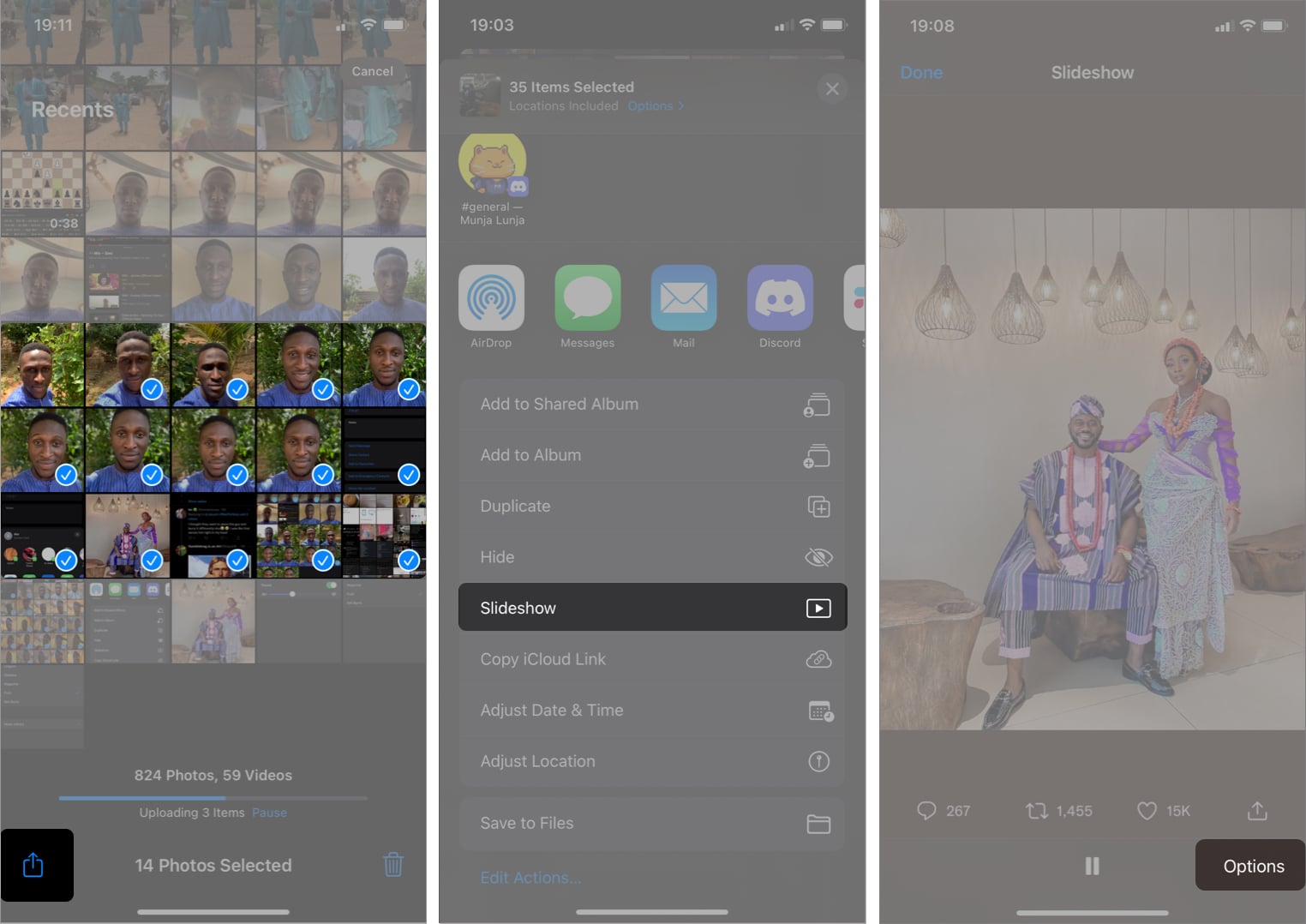
- Tap Done at the top right.
Now, hand over the phone to anyone you want to show your picture slides to. You can even mirror your iPhone to an Android TV to make the experience more alluring.
Once you've shown the slideshow to everyone you wanted, tap Done to close the slideshow.
Can you save the slideshow on your iPhone?
Unfortunately, you can't save slideshows using the Photos app on the iPhone. But you can share date-grouped pictures as slideshows instead. Read the next section to know more.
How to share a slideshow of grouped photos via the Photos Library
Another feature of the Photos app is that it groups pictures in the Library based on the days, months, or years you took them. So this slideshow option comes in handy for creating time-bound memories. However, you can't customize or add pictures as you like.
To create and share slideshows based on their days, months, or years on your iPhone:
- In the Photos app, tap Library.
- Select either Years, Months, or Days.
- For instance, if you're grouping by years:
- Select the year from the displayed pictures.
You'll notice that pictures are further sub-grouped into individual months.
- Tap the three horizontal dots at the top right of the month you want.
- Now, select Play Memory Video.
- To choose music: Tap the music icon at the bottom left. Tap that icon again to load songs.
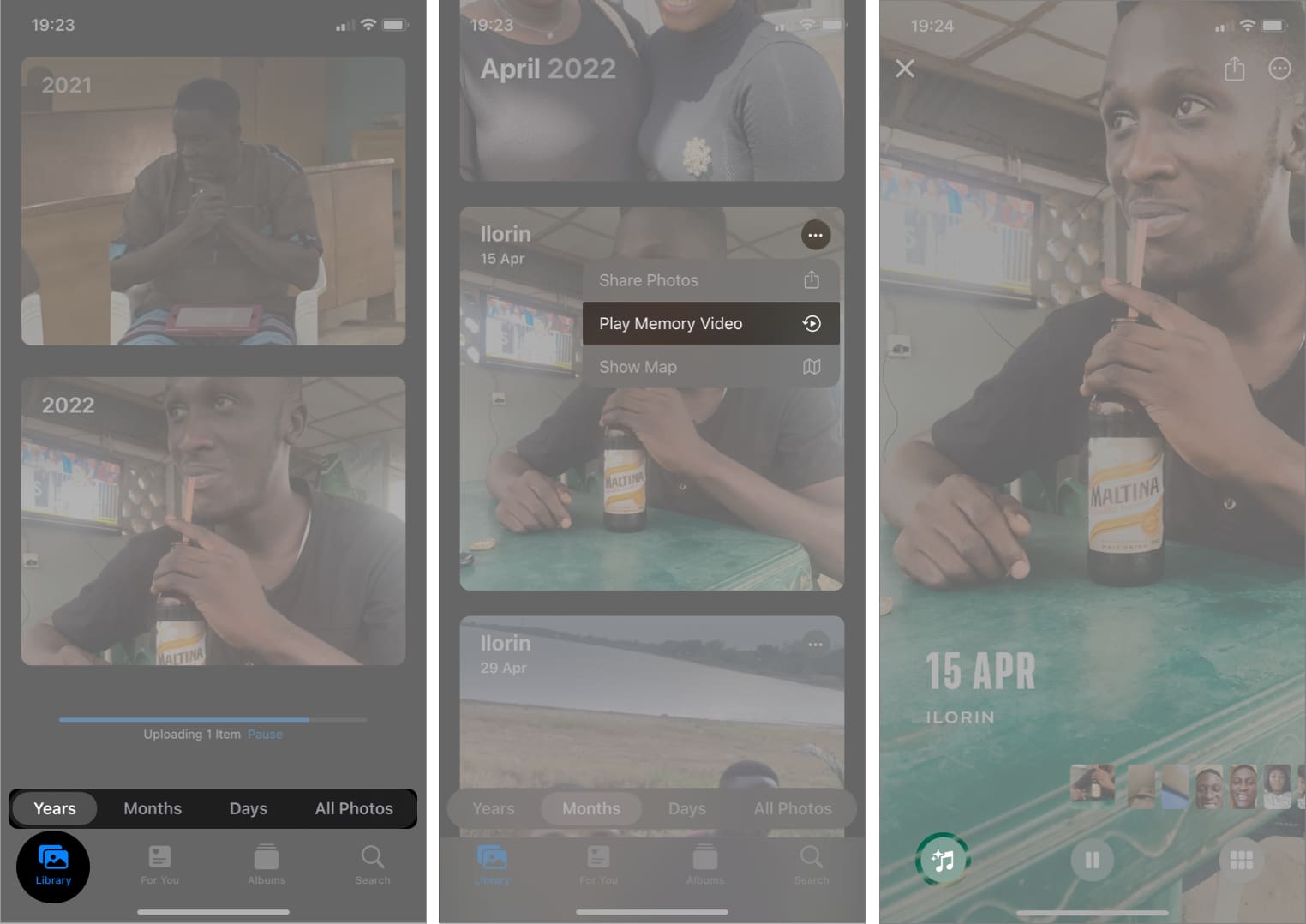
- Touch Done at the top right.
- Tap the Share icon at the top right to share your slideshow.
Alternatively, select Save to Files to save it to your device.
Note: The process might be slow at some points if you've previously backed up your photos to iCloud since your iPhone needs to download them first.
Use a third-party app to share slideshows on iPhone
While the above option is more stringent, you can take the help of movie-making apps. However, I recommend iMovie, as it allows you to create slideshows from your pictures and save them as videos, which you can share with others. You might want to use this iMovie guide to get started.
Why can't I add music to my slideshow on the iPhone?
You may not be able to add music from music stores like Apple Music since most of these have digital rights protection. And this is usually what prevents people from adding music to your slideshow.
Therefore, ensure that the music you want to add doesn't have copyright issues before adding it. The Photos app and many third-party options also let you add default songs to your picture slideshow. So, you might want to use these instead.
Sliding off…
Slideshows are beautiful if you pour enough creativity into the process and pay attention to details. These are all the ways to create a slideshow with music on your iPhone. I hope you're able to create captivating ones for someone. Let me know if you have any questions in the comments section below.
Read more:
- Best iPhone apps for creating stunning videos
- Best collage making iPhone and iPad apps
- How to create Slideshow on Mac in Photos app




No comments:
Post a Comment