
The way we use technology changes as we age, partly due to its constantly evolving nature and our probable inability to keep up with the pace. However, the iPhone comes with elder-friendly features to make the UI easy to navigate for seniors. If you find your iPhone stressful, you're probably not using these features yet!
For a sleeker experience, change the following iPhone settings to make the device easier to use for the elderly.
- Increase text font size
- Use spoken content
- Reduce UI motion
- Adjust Zoom level settings
- Turn on LED flash for alerts
- Setup medical ID
- Enable voice dialing using Siri
- Turn on COVID-19 exposure notification
- Activate walking/wheelchair push steadiness
- Set up emergency contacts
- Add favorite contacts
1. Increase text font size
We lose eyesight strength as we age, and our ability to see tiny bits of text, of course, dwindles with time. To read texts clearly, consider increasing the font size on your iPhone. This applies to apps and websites you visit as well. Besides, this not only helps you improve your ability to see texts clearly but also prevents eye strain.
2. Use spoken content
Spoken content can come in handy whenever you feel tired to read or can't read due to eye fatigue. Whether you're using a social media platform, reading an email, a novel, or a blog post, your iPhone will read out the texts when you turn on spoken content.
Once activated, all you need to do is highlight the text you want to read and tap Speak to allow Siri to read it aloud. You can also reduce reading speed for better comprehension.
3. Reduce UI motion
Actions can flip quickly on the iPhone if you don't regulate its UI motion. Reducing UI motion ensures that you keep track of what's happening on your iPhone at a slower pace; so you don't get lost along the line.
To reduce the UI motion on your iPhone: Open Settings → Accessibility → Motion → toggle on Reduce Motion.
4. Adjust Zoom level settings
Zooming in on the screen also makes content more readable. While you might use the double-finger swipe to zoom on browsers like Safari, you might be unable to do so outside the browser.
To allow zooming in on iPhone's UI: Go to Settings → Accessibility → Zoom → toggle on Zoom.
Once activated, use three fingers to double-tap your iPhone's screen to zoom in or out. Similarly, use three fingers to drag the screen around when zoomed in.
5. Turn on LED flash for alerts
You might not notice when your phone rings on vibration due to reduced attention span. This might even happen regardless of whether your phone is on silent, vibration, or rings out. Enabling the LED flashlight for alerts helps you see it quickly as the light flashes.
Additionally, it can be helpful when someone calls you or your iPhone rings at night!
6. Setup medical ID
We can't rule out more frequent health issues as the body ages. Hence, we can't also rule out the need to set ourselves up for health emergencies.
Emergency ID lets you save your health history on your iPhone. Emergency responders can use this information as a basis for a first-aid application. Thankfully, your iPhone can come in handy for sending emergency alerts to the nearest clinic or emergency teams when you set up an emergency medical ID.
7. Enable voice dialing using Siri
Siri helps with many tasks on the iPhone, and you might not find it intriguing as a senior citizen. But allowing Siri's voice dial is one way to use Siri maturely to your advantage. The idea is to enable Siri on your iPhone and tell it to call a phone number from your contact.
Once active, you can simply say, "Hey Siri, call." Then call out a phone number or a name on your contact list for Siri to call. However, you might want to activate Always Listen for "Hey Siri" to use Siri even when your iPhone is facing down or covered.
To activate Always Listen for "Hey Siri": Go to your iPhone Settings → Accessibility → Siri → toggle on Always Listen for "Hey Siri".
8. Turn on COVID-19 exposure notification
COVID-19 is more prevalent in older people due to compromised or suppressed immunity typically of old age. As part of efforts to curb the spread of COVID-19, Apple added the exposure notifications feature to its iOS 13.5 version update to alert users when they enter COVID-19 hot zones or areas where they're likely to contract the infection.
To activate this feature:
- Open iPhone Settings → Exposure Notifications.
- Toggle on Exposure Notifications.
- Tap Continue → select your country to activate the COVID-19 exposure notification.
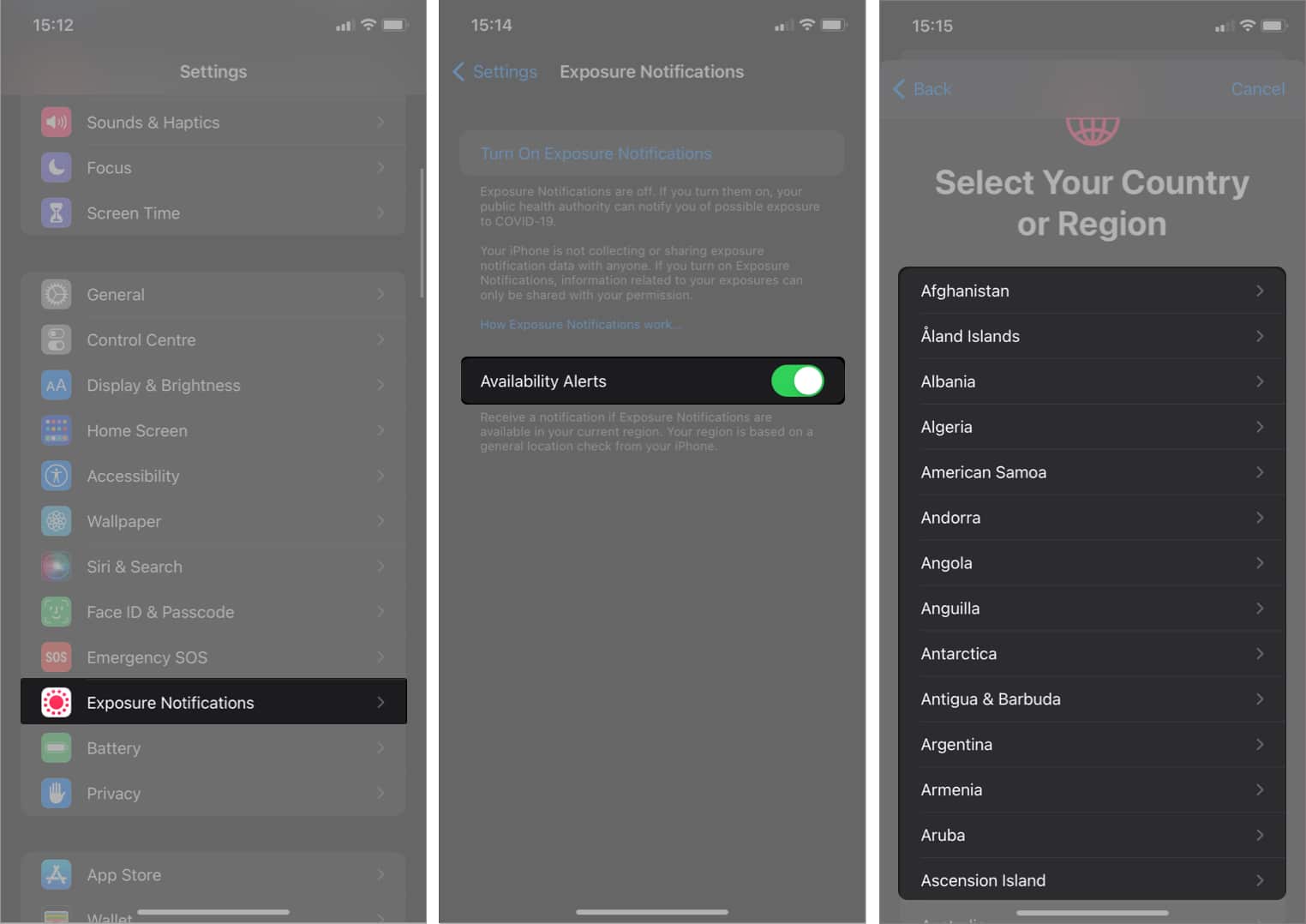
However, keep in mind that this feature isn't available in all countries. Your iPhone will let you know if the COVID-19 exposure alert is available in your region or not while registering, though.
9. Activate walking/wheelchair push steadiness
While walking steadiness keeps track of your gait cycles, the wheelchair push steadiness helps track consistencies in your pushes if you're in a wheelchair.
Walking steadiness gives statistics on your walking habit over time. The feature ultimately lets you know your likelihood of falling based on your step history.
However, you need an Apple Watch to use wheelchair steadiness on the iPhone. Setting up wheelchair steadiness is similar to activating walking steadiness. The only difference is that you'll have to replace walking steadiness with the wheelchair push steadiness in the Health app while setting it up.
To replace walking steadiness with wheelchair pushes:
- Open iPhone Settings → Health → Health Details.
- Next, tap Edit at the top right.
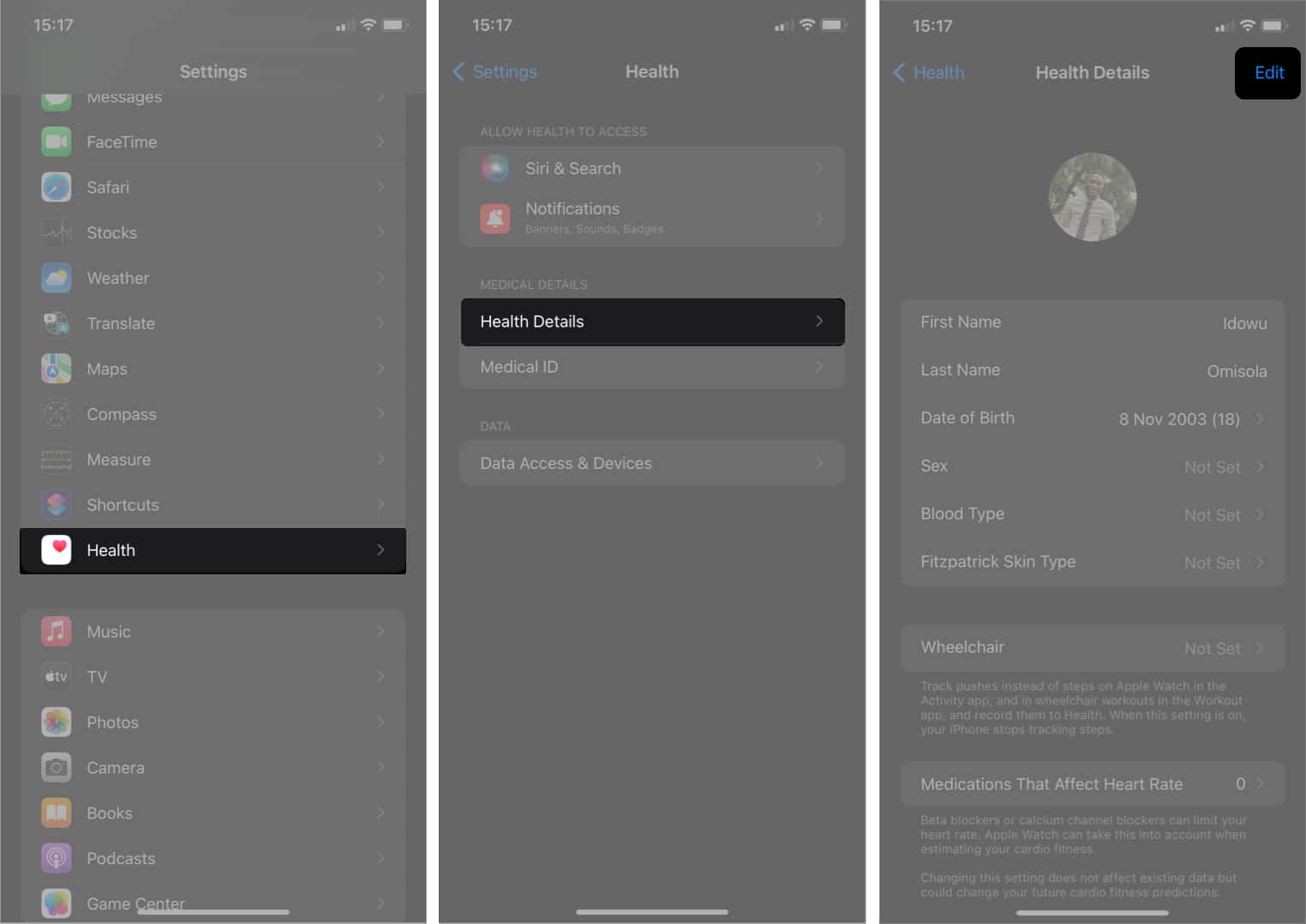
- Tap Wheelchair → select Yes.
- Click Done at the top-right.
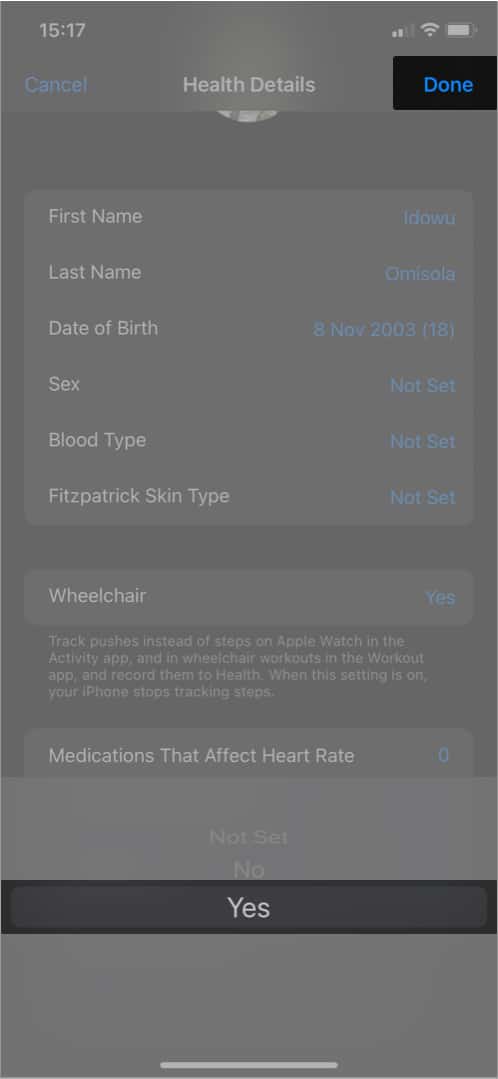
Your iPhone will now get your wheelchair pushes data from your Apple Watch to track your pushes. Then, it'll replace walking steadiness with wheelchair push steadiness with time in the Health app.
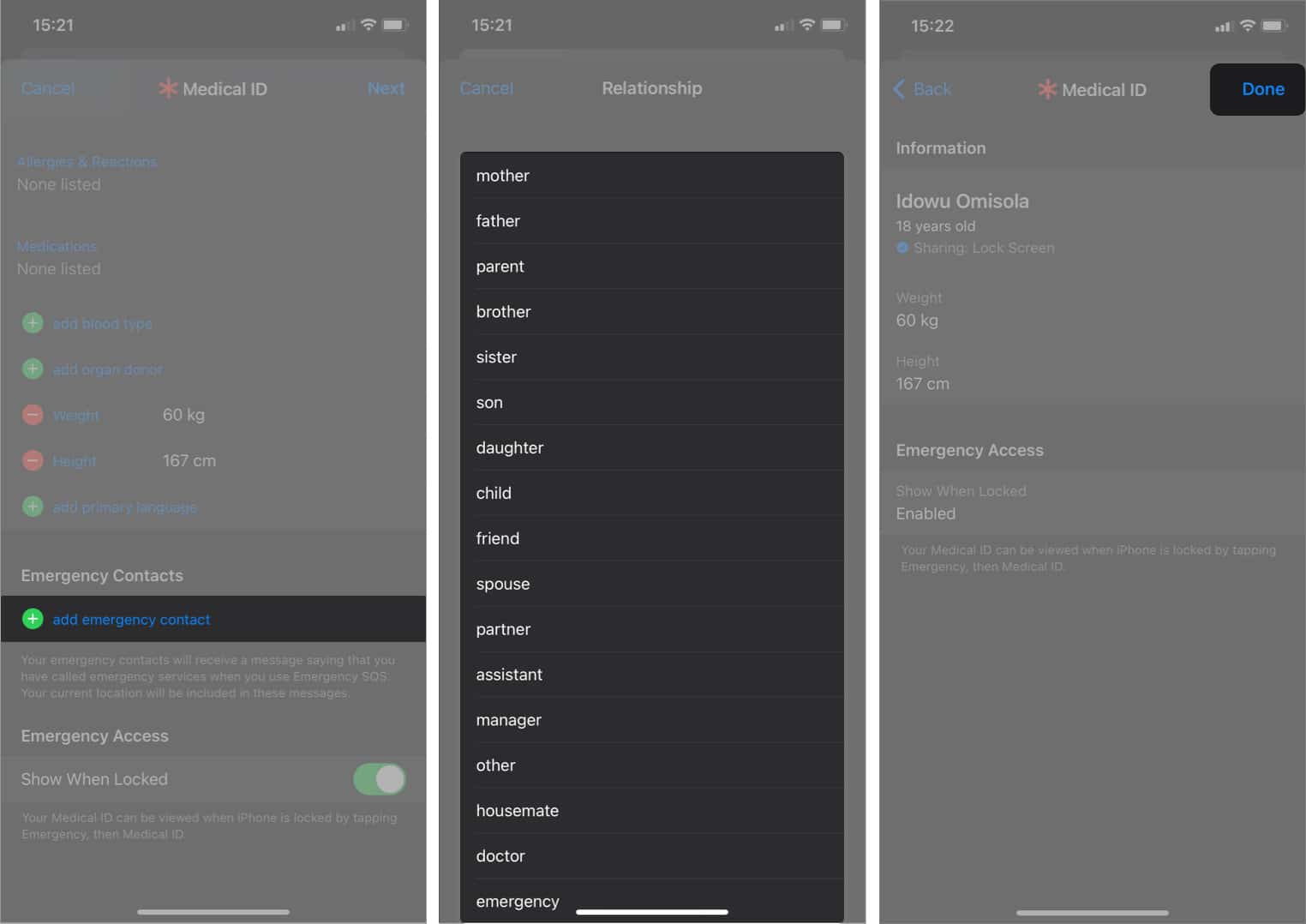
Emergency contacts can be helpful in times of unforeseen health challenges. Your iPhone sends an SMS, including your current location, to your emergency contacts immediately when you call an SOS, letting them know you're in an emergency.
To set up emergency contacts on your iPhone:
- Open iPhone Settings.
- Go to Emergency SOS → Set up Emergency Contacts in Health.
- Tap Create Medical ID.
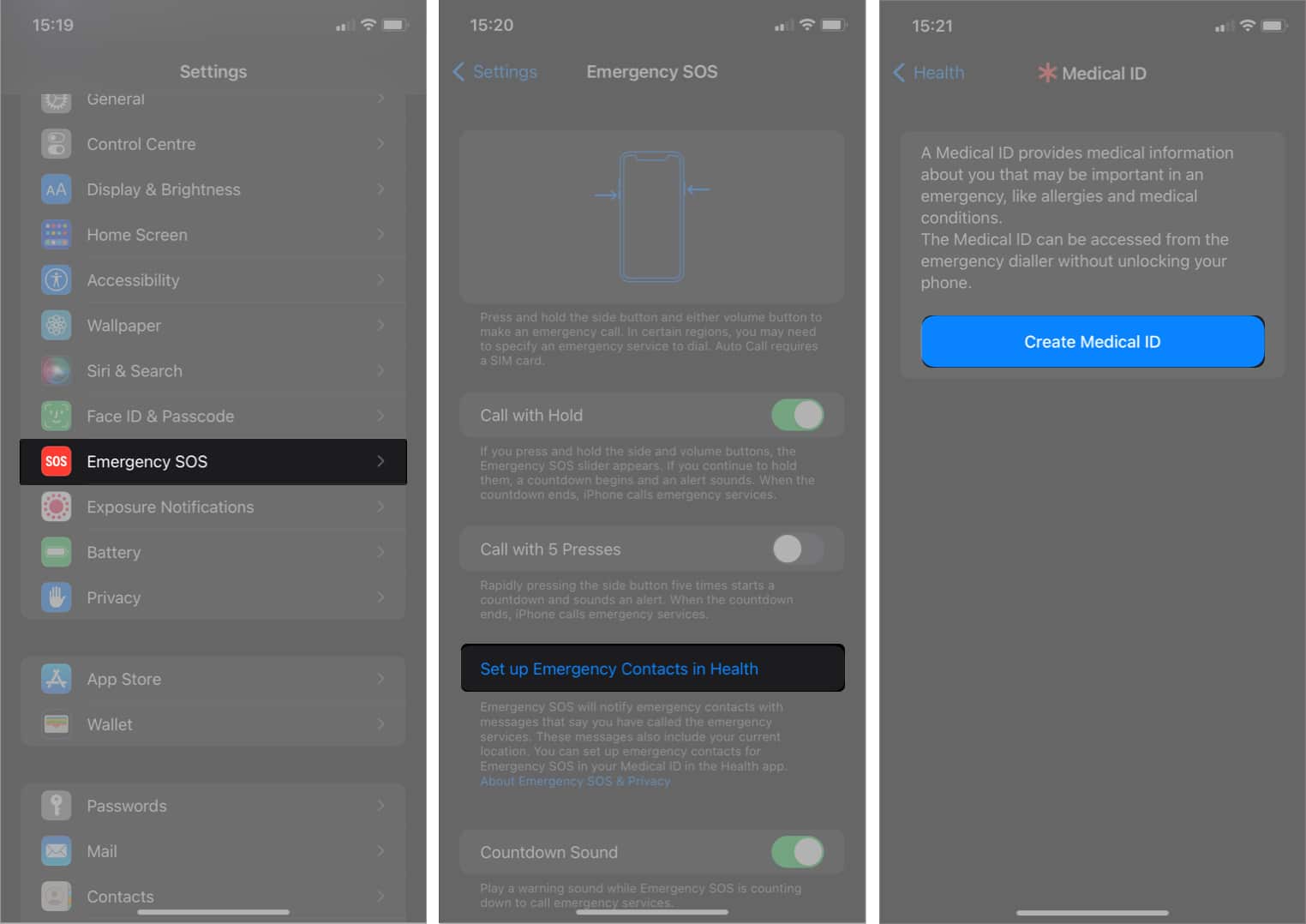
Fill out the health information form.
- In the same menu, tap add emergency contact → select their relationship with you.
Tap add emergency contact to add more. - Once done, tap Next at the top right.
- Finally, tap Done.
Favorite contacts are phone numbers you can access easily without searching your phone book. This can be handy during an emergency. Use this guide to add favorite contacts on your iPhone.
That's it!
These are some of the iPhone settings you can use to your advantage as you age. They add significant value and help you get through your routine efficiently. Which iPhone Settings do you find most valuable as a senior citizen? Let me know in the comments section below!
Read more:
- 22 iPhone settings you should change right now
- 5 iPhone Camera Settings for best pictures
- How to change iPhone privacy and security settings





No comments:
Post a Comment